Colorize Black-and-White Photos: A Step-by-Step 2026 Guide
AI can add color to an old photo in seconds. Whether that color is right is a different question — here’s how to get the best result and know when to double-check it.
Munib Ali Laghari
Founder & Lead Developer
Quick answer
How accurate is AI colorization of black-and-white photos?
Accurate for the obvious things — skin tones, sky, grass, and common clothing — because the AI has seen millions of real examples of those. For anything the AI has no way to know, like an exact dress color, a specific car’s paint, or a military uniform’s branch colors, it produces a plausible, well-rendered guess rather than a historical fact. Repair any physical damage before colorizing, and keep the original black-and-white photo as the accurate record for anything historically significant.
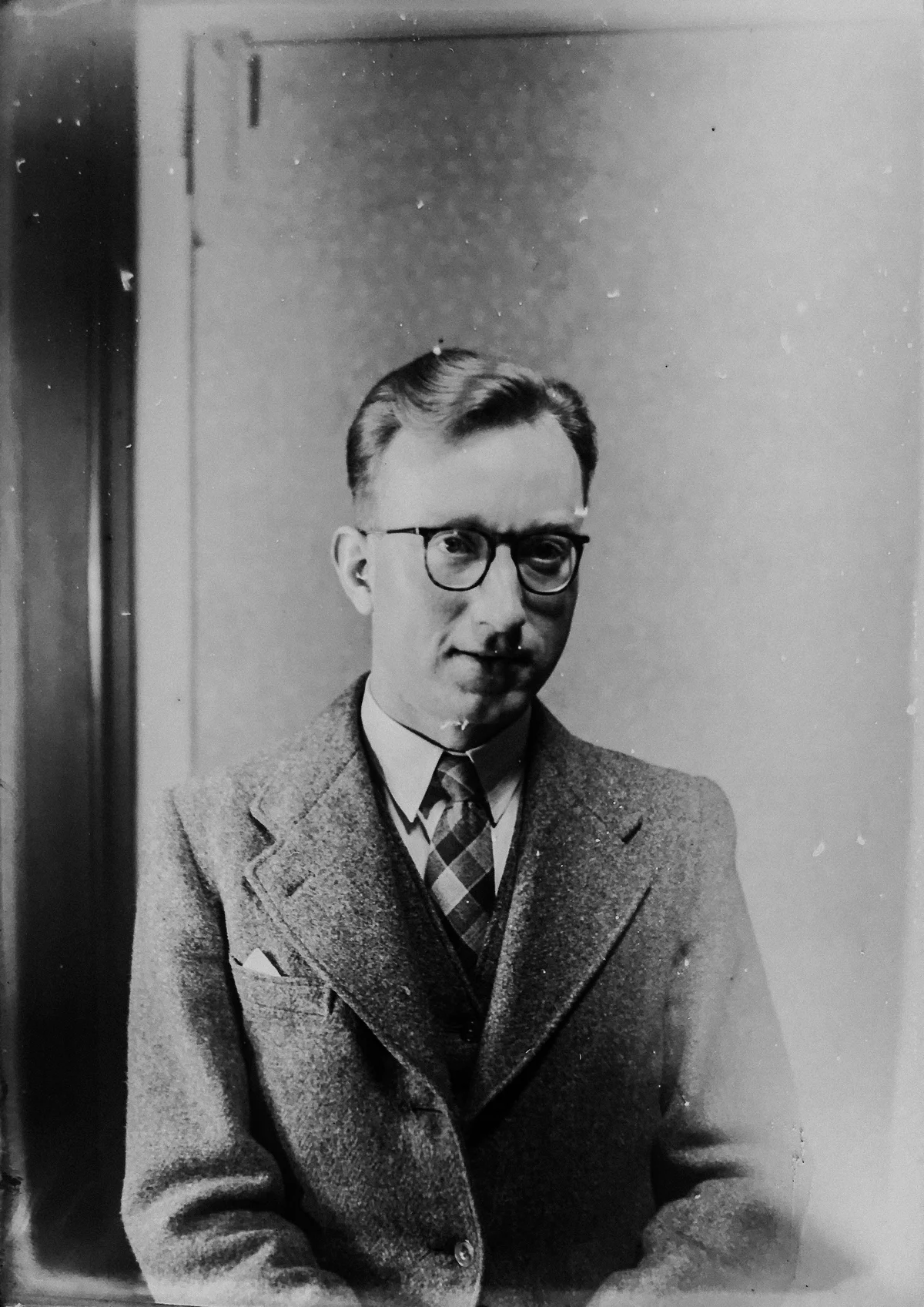
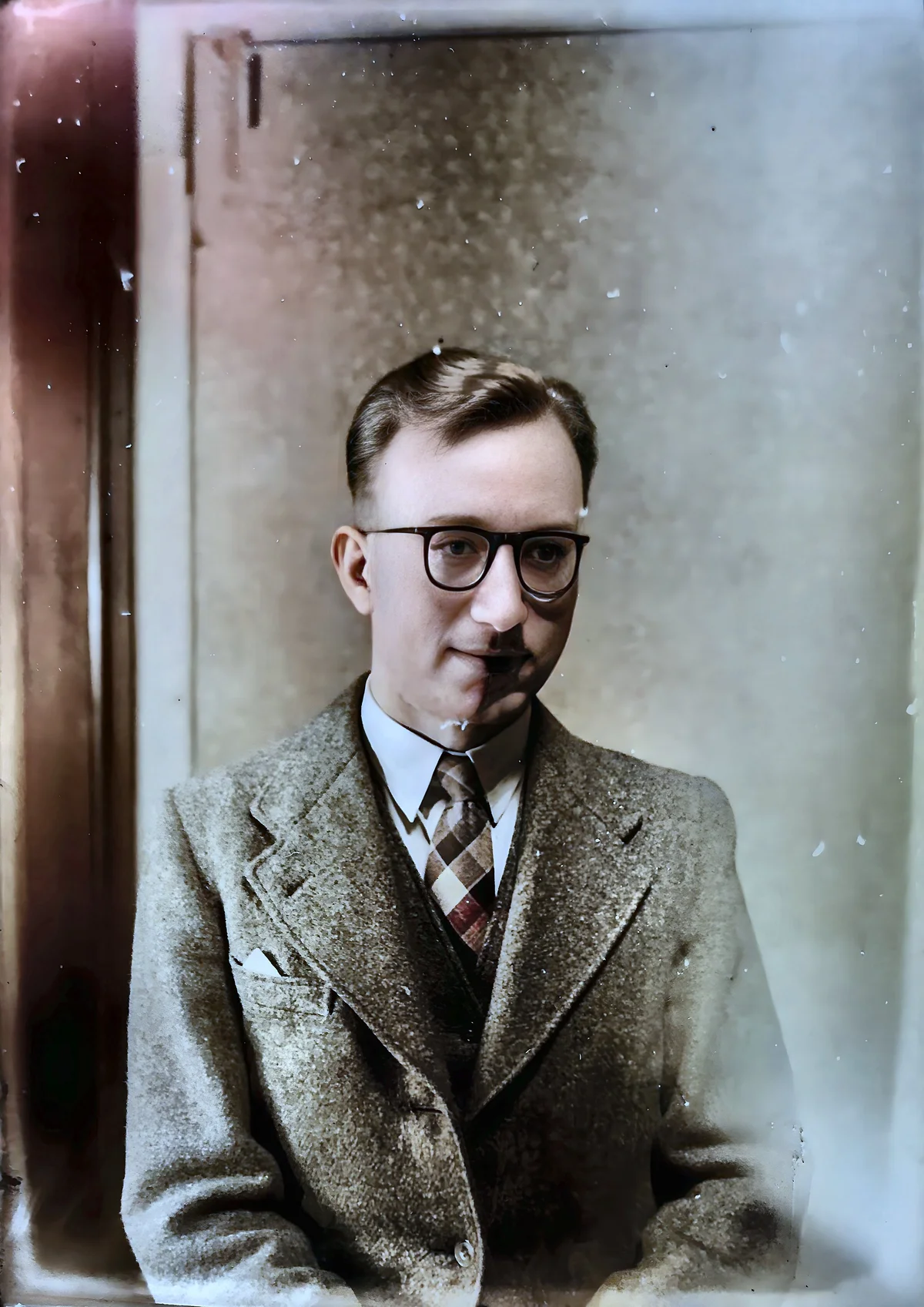
There's a specific kind of magic in seeing a black-and-white photo of your grandmother in color for the first time — suddenly she's not a figure from history, she's a person, with a favorite blue dress and rosy cheeks and eyes that look exactly like your mom's. AI colorization can do that in about fifteen seconds now. What it can't do is guarantee that dress was actually blue.
That's not a knock on the technology — it's genuinely good, and getting better every year. It's just worth knowing what you're actually looking at before you frame it, print it, or share it as family history. Here's how colorization works, how to get the most believable result, and where to trust your own judgment over the AI's.
How AI Colorization Actually Works
An AI colorizer doesn't know what color anything in your photo actually was — it's making an educated guess, trained on millions of real color photographs, about what color things like that usually are. Skin tends toward certain ranges. Sky is usually blue or grey. Grass is green. A 1940s suit is more likely charcoal or navy than hot pink. The model has learned these patterns statistically, and it applies them to the shapes, textures, and shading in your grayscale photo to produce a plausible, realistic-looking result.
This is a fundamentally different kind of AI process than something like upscaling or denoising. When we upscale a photo, the extra detail was implied by the original pixels — the AI is reconstructing information that's really there, just compressed or blurry. Colorization is different: the color information simply isn't in a black-and-white photo. There's nothing to reconstruct. The AI is inventing a plausible answer, not recovering a real one. That's a meaningful distinction, and it's why the honest answer to "how accurate is this" is "plausible, not certain."
How Accurate Is AI Colorization, Really?
For the obvious stuff, genuinely accurate — skies read as blue, faces get natural skin tones, grass and trees look like grass and trees. Where it gets shakier is anything the AI has no way to know: the exact shade of a dress, the specific color of a car, a military uniform's branch insignia, or a house's actual paint color. In those cases, the AI gives you something plausible and well-rendered — it just might not be the truth.
This matters most for photos where the color carries real information: a genealogy project documenting a specific military unit, a historical archive, anything going into a publication where accuracy is the point. It matters a lot less for the family photo going on your wall, where "looks right" is really the only bar that needs clearing. Know which kind of project you're doing before you trust the result uncritically.
Step-by-Step: Colorizing a Photo
- 1.Start with the best scan you have. A higher-resolution source gives the AI more detail to work with — texture, shading, subtle gradients — all of which improve how believable the final colors look. If you only have a low-quality scan, consider upscaling it first.
- 2.Repair damage before you colorize, not after. Scratches, creases, and stains confuse a colorization model just as much as they confuse the eye — a crease can get colored in as if it were a real edge in the scene. Our photo restoration tool fixes physical damage as a separate step before color is applied, in that order, for exactly this reason.
- 3.Turn on colorization in the same pass. Upload your photo, and enable colorization in the options alongside the standard repair and face-restoration steps. There's no separate tool or extra cost — it runs as part of the same 3-credit restoration job.
- 4.Look closely at faces and any area you actually care about. Faces are where the AI has the most training data and generally performs best; unusual objects, insignia, or patterned fabric are where it's most likely to guess wrong.
- 5.Download and compare. Keep the black-and-white original alongside the colorized version — for anything historically significant, that original is still the only fully accurate record you have.
Getting the Most Believable Results
Photos with clear, simple lighting and minimal damage colorize the most convincingly, because the AI has clean shapes and shading to work from rather than noise or scratches it has to color around. If a photo is faded or low-contrast, restoring it first genuinely helps — more visible detail means more information for the model to base its color choices on. Faces tend to come out the most natural since portraits make up a huge share of what these models are trained on; large uniform surfaces like a plain wall or an overcast sky are also reliably good, because there's less room to guess wrong.
When to Second-Guess the AI
| What the AI usually gets right | What's worth double-checking |
|---|---|
| Skin tones, faces | Exact dress, uniform, or fabric colors |
| Sky, grass, common outdoor scenes | Vehicle paint colors |
| Everyday clothing (neutral tones) | Military insignia, medals, rank colors |
| Skies, water, greenery | Painted signage, brand colors, house exteriors |
If a color genuinely matters — for a historical record, a publication, or a genealogy project — a quick search or a conversation with someone who remembers the original can catch what the AI had no way to know. For a photo that's going on the mantelpiece, the AI's best guess is usually more than good enough.
Frequently Asked Questions
How do I colorize a black-and-white photo with AI? Upload your photo to a restoration tool that includes colorization, enable the colorization option, and download the result. Repairing any physical damage — scratches, creases, fading — in the same pass produces a more natural-looking colorized result than colorizing a damaged scan directly.
Is AI photo colorization accurate? It's accurate for the obvious things — skin tones, sky, grass, common clothing — because the AI has seen millions of examples of those. It's a plausible guess, not a historical record, for anything the AI has no way to know, like an exact dress color, a specific car's paint, or a uniform's branch colors.
Should I colorize the original photo or a copy? Always keep the original black-and-white version. For anything with real historical or genealogical value, that untouched original remains the only fully accurate record — the colorized version is a plausible, more emotionally accessible companion to it, not a replacement.
Does colorizing a photo cost extra beyond restoration? No. Colorization is an option inside the same photo restoration tool, not a separate purchase — enabling it doesn't change the credit cost of the job.
Can I colorize a badly damaged or very faded photo? Yes, but restore it first. Repairing scratches, tears, and fading before colorizing gives the AI a cleaner image to work from, which produces noticeably more natural, believable color than colorizing a damaged photo directly.
What's the difference between AI colorization and upscaling or denoising? Upscaling and denoising reconstruct detail that's still implied in the original pixels — the information is degraded but recoverable. Colorization is different: the color was never captured in a black-and-white photo, so the AI is generating a plausible answer rather than recovering a real one.
Bring the Photo Back — Honestly
AI colorization is one of the most quietly emotional things this technology does — it's hard not to feel something seeing a black-and-white ancestor look like an actual person again. Just hold that feeling next to a little honesty about what the AI knows and what it's guessing, especially if the photo's colors need to be right, not just believable. Try free AI photo restoration and colorization — 25 credits to start, then 10 every month, no card required.
Found this helpful?
Share it with your network
Ready to try it yourself?
25 free credits to start, then 10 every month. No credit card. Process your first image in under 15 seconds.
Get Started FreeMunib Ali Laghari
Founder & Lead Developer · EnhanceCraft
Munib Ali Laghari is the founder and lead developer of EnhanceCraft, an AI image toolkit. He writes about AI upscaling, photo restoration, and background removal. Connect on LinkedIn