Best AI Photo Restoration Tools for Old & Damaged Photos (2026)
Seven AI photo restoration tools for old, faded, and damaged prints, sorted by what each does best, where each falls short, and when to hire a human instead.
Munib Ali Laghari
Founder & Lead Developer
Quick answer
What is the best AI tool for restoring old photos?
It depends on the damage and how much control you want. Photoshop offers the most hands-on control. Online tools such as EnhanceCraft, LetsEnhance, and VanceAI repair scratches, faces, and color from one upload. Topaz Photo suits desktop sharpening, MyHeritage suits photos tied to a family tree, and Remini is quickest on a phone.
Before
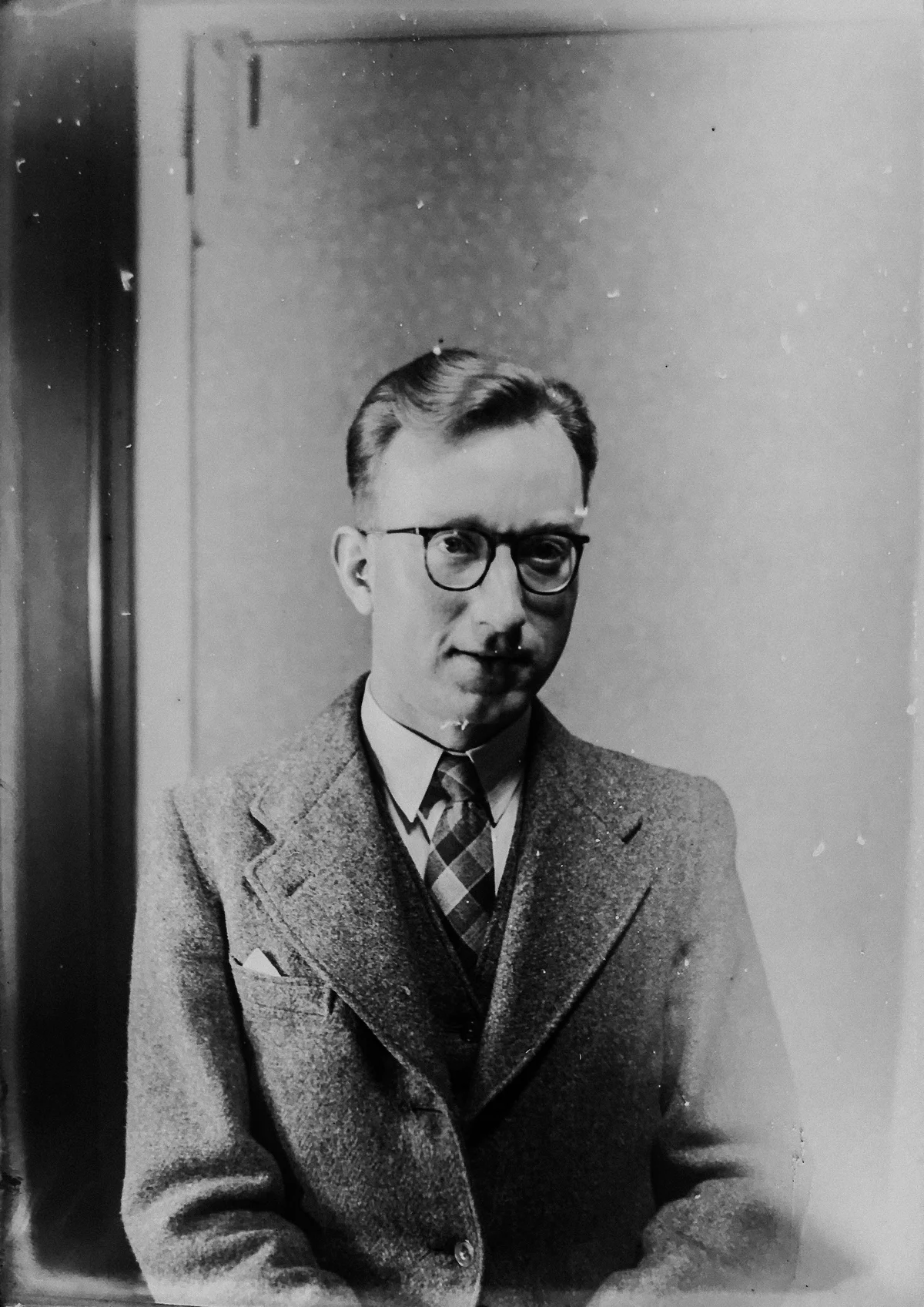
After
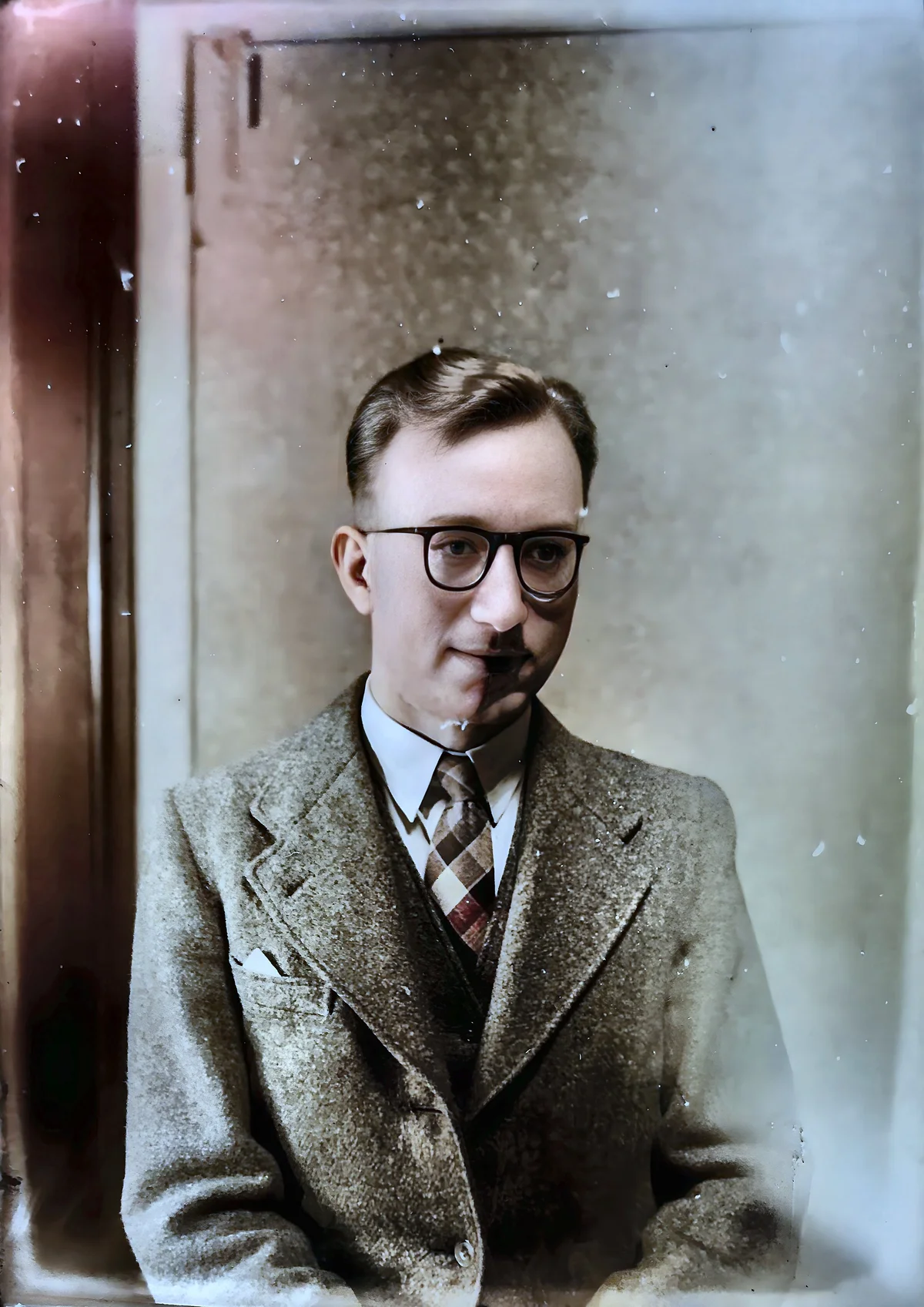
More examples like this: browse before & after results across every tool.
Somewhere there's a shoebox. Maybe it's in a closet or your parents' attic, or it's a folder of scans you made years ago and never touched again. The photos in it are faded, creased, or scratched, and the faces you most want to see are the ones that went soft first.
A lot of AI tools now promise to fix that in one click. Most of the roundups ranking for it share an awkward habit: they're written by a company that sells one of the tools, and that tool tends to land near the top. This one has the same conflict, so here it is up front. I build EnhanceCraft, and it's on this list at number two.
I haven't run a single photo through all seven tools and scored the results, and I won't pretend I did. Everything below comes from what each tool says it does on its own site, read in October 2026, with the gaps spelled out. Near the end there's a ten-minute test you can run on your own worst photo, which will tell you more than any ranking can.
The Short Answer: Pick the Tool That Matches the Damage
The best AI photo restoration tool depends on what's wrong with your photo and how much control you want. Photoshop gives you the most hands-on control. Online tools like EnhanceCraft, LetsEnhance, and VanceAI repair scratches, faces, and color from a single upload. Topaz Photo suits sharpening and face recovery on your desktop, MyHeritage suits photos tied to a family tree, and Remini is quickest on a phone.
| Tool | Best for | Runs on | What its own site lists |
|---|---|---|---|
| Adobe Photoshop | Doing it by hand, with AI help | Desktop, subscription | Photo Restoration filter with image, face, and scratch sliders; Colorize filter; Spot Healing Brush; Clone Stamp |
| EnhanceCraft | One-pass repair of scratches, faces, and color | Browser | Damage repair, face restoration, optional colorization, upscaling |
| LetsEnhance | Repairing and enlarging for big prints | Online | "Old Photo" model for creases, scratches, tears, and stains; colorizing; upscaling up to 16x |
| Topaz Photo | Sharpening and faces on your own computer | Windows and Mac, subscription | Dust and Scratch removal, Recover Faces, Denoise, Sharpen, Upscale |
| VanceAI | Quick online repair, batches on Windows | Online and Windows PC | Scratch, tear, and stain repair; face enhancement; faded-color correction; separate colorizer |
| MyHeritage | Photos that already live in your family tree | Online and app | Photo Repair, In Color, Photo Enhancer |
| Remini | Faces on your phone | iOS, Android, web | Old Photos Restorer, Face Enhancer, Unblur & Sharpener, Denoiser |
What Kind of Damage Does Your Photo Have?
Old photos usually have several separate problems, and tools are good at different ones. There's physical damage like scratches, tears, creases, and stains. There's fading, where color shifts and contrast drains away. There's lost detail, like soft faces or a small scan. And if the print is black and white, there's the wish for color, which is a guess rather than a repair.
| What you see | What it needs | What to look for in a tool |
|---|---|---|
| Cracks, creases, scratches, tears, stains | Damage repair | Scratch and damage removal |
| Faces look soft or washed out | Face restoration | Face recovery or a face enhancer |
| Everything is yellow, cyan, or faded | Color and contrast correction | Faded-color restoration |
| Black and white, and you'd like color | Colorization | A colorizer (a plausible guess, not a recovery) |
| The scan is small or soft | Upscaling | An upscaler, used last |
Order matters. Repair the physical damage first, then the faces, then the color, and enlarge at the very end. A scratch left in place gets sharpened, colored, and enlarged along with everything else. Our guide to how AI restoration works walks through each stage.
Scan It Properly First
No tool can restore detail your scan never captured, so scan well before you compare anything. The Library of Congress says that for most personal work, 300 to 400 dpi is satisfactory for snapshot prints and common enlargements at 4×6, 5×7, or 8×10 inches. If a print is small or you plan to enlarge it, scan higher. You can always shrink a file later, and you can't add detail back.
The same Library of Congress guide recommends keeping a TIFF as your master file and working from a JPEG copy. Use a flatbed scanner rather than a sheet feeder, because the Northeast Document Conservation Center advises against feeding historic photographs through sheet-fed scanners. And whatever you do, never edit the original print or overwrite the original scan.
The One Thing to Check: Does It Still Look Like Them?
Restoration tools work in one of two ways. Faithful tools rebuild detail that the scan still hints at. Creative tools invent plausible detail to fill the gaps. Both look sharp at thumbnail size, but only the first is safe for a face you need to recognize.
That matters more than any feature list, because a restored face can look wonderful and still be wrong. The tell is usually that it looks younger, smoother, or kinder than the original could support. Open the original and the restored version side by side at 100% and compare the things faces are made of: the spacing of the eyes, the shape of the nose, the hairline, the teeth, the ears. If you have a relative who knew the person, show them. Our piece on why AI photos look too perfect lists the other tells.
Photoshop's filter gives you a facial-enhancement slider, and EnhanceCraft has a face-enhancement control too. With any tool that has a strength setting, use the lowest one that fixes the problem. Color deserves the same caution: on a black-and-white photo, the colors are an educated guess, not recovered information, as we explain in our colorization guide.
One more note, because it's a common move now. You can ask a general-purpose AI assistant to "restore this photo," and the result can be striking. Those tools typically make a new image based on yours rather than repairing yours, so run the same side-by-side check on the face before you trust it.
The 7 Best AI Photo Restoration Tools
These aren't ranked best to worst. Each entry sticks to what the tool's own site says it does, so where I say a tool falls short, I'm talking about its documented scope and not a test result.
1. Adobe Photoshop: best when you want to do it by hand
Photoshop has a Photo Restoration Neural Filter, found under Filter, Neural Filters, with sliders for overall enhancement, facial enhancement, and scratch reduction. A separate Colorize filter handles black-and-white prints. Underneath sit the classic tools that Adobe's own restoration page points to, like the Spot Healing Brush and the Clone Stamp. Because you can mix AI and manual work, it's the one to reach for when a single stubborn tear needs a human hand.
Where it falls short: it's subscription software with a real learning curve, and nothing is automatic across a box of two hundred prints.
2. EnhanceCraft: best for fixing scratches, faces, and color in one pass
This one is ours. The photo restoration tool works as a sequence: it repairs physical damage first, then reconstructs faces, then corrects faded color. For a black-and-white print you can switch colorization on as part of the same job. A full restoration costs 3 credits. If faces are your main problem, face restoration is a separate 2-credit tool that returns the image at twice its original size. You can run two restorations a day without an account, and a free account includes 25 credits to start, then 10 every month.
Where it falls short: it's an automatic pipeline with strength controls, not a brush, so you can't paint a repair by hand the way you can in Photoshop. Automatic repair also rarely catches every speck. Look closely at the after image at the top of this page and you'll still see a few bits of dust, which is what the object remover is for. And if a big chunk of the print is missing, no automatic tool can honestly rebuild it.
3. LetsEnhance: best for repairing and enlarging for big prints
LetsEnhance has an "Old Photo" model that, per its own pages, repairs creases, scratches, tears, and stains, can colorize black-and-white originals, and is built so that people still look like themselves. Restored photos can then be enlarged up to 16x, which is why it suits photos headed for large prints. We compared the two directly in EnhanceCraft vs LetsEnhance.
Where it falls short: it's one automatic model, so the face check above applies in full. And enlarge only as far as the scan supports. A damaged, low-resolution scan enlarged by a huge factor gets bigger without gaining real detail, which our guide to upscaling for print explains.
4. Topaz Photo: best for sharpening and face recovery on your own computer
Topaz Photo is desktop software for Windows and Mac that runs standalone or as a plugin. Its product page lists Denoise, Sharpen, Upscale, Recover Faces, Adjust Lighting, and Balance Color, plus Dust and Scratch removal, an autopilot mode, and batch processing. It's a good fit if you'd rather work in a desktop app than upload photos to a website. See EnhanceCraft vs Topaz Labs for the longer comparison.
Where it falls short: it's subscription software, its page lists no dedicated colorizer for black-and-white prints, and it's a general photo tool rather than a restoration-first workflow, so heavy tears are still your job.
5. VanceAI: best for quick online repair, with batches on Windows
VanceAI's photo restorer, according to its own pages, repairs scratches, tears, stains, and creases, corrects faded color and sepia tones, and sharpens faces. You restore one image at a time in the web app, or batch a pile of them with its Windows software. For black-and-white originals it points you to a separate colorizer. Our EnhanceCraft vs VanceAI guide goes deeper.
Where it falls short: color is a second step in a different tool, which means a second pass over the same photo.
6. MyHeritage: best if your photos already live in a family tree
MyHeritage offers three tools, per its own help pages: Photo Repair for scratches and creases, In Color for colorizing black-and-white photos and restoring faded color, and Photo Enhancer for sharpening blurry faces. There's also an app for scanning albums. You can use each for a limited number of photos for free before a subscription is needed, and the exact limits change, so check the current ones.
Where it falls short: it's built around a genealogy subscription and not as a standalone restoration tool. If you only want a few photos fixed, the free allowance may be enough. If you want dozens, you're buying a family-history service.
7. Remini: best for faces on your phone
Remini is a mobile-first app that also runs on the web. Its restorer page names an Old Photos Restorer, a Face Enhancer, an Unblur & Sharpener, and a Denoiser, and says free use is supported by ads, with a paid membership as the alternative. It's the fastest route from a phone snapshot of an old print to a clearer face. We compared the two in EnhanceCraft vs Remini.
Where it falls short: the feature list leans toward faces, blur, and noise, so if a print has long scratches or tears, check the result right along the damage.
Which one should you start with?
- ●One precious print, and you want full control: Photoshop.
- ●A handful of family photos, fixed fast: an online tool such as EnhanceCraft, LetsEnhance, or VanceAI.
- ●Mostly soft faces: Remini, Topaz Photo, or a dedicated face tool.
- ●Photos you're already organizing in a family tree: MyHeritage.
- ●A big pile of prints, going to large frames: repair first, then upscale, and pick a tool whose upscaling you've tested on your own file.
A Ten-Minute Test to Run on Your Own Photo
You'll learn more from your photo than from any ranking, and most of these tools let you try them before paying.
- 1.Pick your worst photo, not your best. Easy photos look great in every tool. A hard one shows you where they differ.
- 2.Run the same scan through two tools. Use the same file each time, with each tool's free option, so the only thing that changes is the tool.
- 3.Compare at 100%, next to the original. Check faces first. Then look along the edges of repaired areas for smudged patches or repeated texture. Then look at color.
- 4.Keep the lowest strength that works. If the result looks better than a photo from that era could have, turn it down.
When to Hire a Human Restorer
Hire a professional when the photo is irreplaceable and a large part of it is missing, or when you need something no machine can promise, like an archival print or a face rebuilt from other photos of the same person. An AI tool works from the pixels it has. Where a big piece is missing, any automatic tool is inventing, and a person can at least tell you what was reconstructed and from what.
A few habits make either route safer. Scan the original at a high resolution first. Keep the original untouched. If the print itself is fragile, with flaking emulsion or mold, have a photograph conservator look at it before it goes through any scanner. And ask any restorer how they mark what was repaired and what was invented. Many people use both: an AI pass to get shareable copies quickly, and a specialist for the one photo that really matters.
How You Pay
Pricing in this category changes often, so check each site for current terms. The broad picture from each tool's own pages:
- ●Photoshop and Topaz Photo: subscription software.
- ●MyHeritage: free for a limited number of photos, then a subscription.
- ●Remini: free use supported by ads, with a paid membership.
- ●EnhanceCraft: credits. Restoration is 3 credits, face restoration is 2, and upscaling is 1 credit at 2x or 2 at 4x. A free account includes 25 credits to start, then 10 every month.
Frequently Asked Questions
What is the best AI tool to restore old photos? It depends on the damage and how much control you want. Photoshop gives the most hands-on control. Online tools such as EnhanceCraft, LetsEnhance, and VanceAI repair scratches, faces, and color from one upload. Topaz Photo suits desktop sharpening, MyHeritage suits photos tied to a family tree, and Remini is quickest on a phone.
Is there a free AI photo restoration tool? Several offer a free way in. EnhanceCraft lets you restore two photos a day without an account and gives a free account 25 credits to start. Remini's free use is supported by ads, and MyHeritage covers a limited number of photos before it asks for a subscription. Limits change, so check each site before relying on one.
Can AI fix a badly torn or damaged photo? It can repair scratches, creases, stains, and small missing areas. Large missing sections are different: there the tool is guessing, not recovering. For an irreplaceable print with a big gap, a professional restorer is the safer route.
Will AI change how the people in my photo look? It can. Compare the restored photo with the original at 100% and check the eyes, nose, hairline, and teeth. If the face looks younger or smoother than the original could support, lower the strength or try another tool.
What resolution should I scan old photos at? The Library of Congress says 300 to 400 dpi is satisfactory for most personal work on snapshot prints and common enlargements. Scan higher if the print is small or you want to enlarge it, and keep a TIFF master file alongside a working JPEG.
Can AI colorize black-and-white photos accurately? It can make them look plausible, but not certain. The AI learns typical colors for skin, sky, and grass from real photos, and guesses at everything else, like a particular dress or car. Treat colorized versions as a rendering and keep the black-and-white original as the record.
The Bottom Line
The best restoration tool is the one that fits your damage and leaves the people in the photo looking like themselves. Scan carefully, repair before you color or enlarge, and run your worst photo through two tools before you commit to either.
If you'd like to start with a browser-based option, try the free photo restoration tool with 25 credits to start, then 10 every month, no card required. For the faces alone there's face restoration, and the wider AI image toolkit covers the rest.
Found this helpful?
Share it with your network
Ready to try it yourself?
25 free credits to start, then 10 every month. No credit card. Process your first image in under 15 seconds.
Try Photo Restoration freeMunib Ali Laghari
Founder & Lead Developer · EnhanceCraft
Munib Ali Laghari is the founder and lead developer of EnhanceCraft, an AI image toolkit. He writes about AI upscaling, photo restoration, and background removal. Connect on LinkedIn