AI Image Denoising: Remove Noise and Artifacts for Crystal-Clear Photos in 2026
Remove digital noise, JPEG artifacts, and graininess from photos with AI. See how denoising restores clarity and sharpness without changing resolution.
Munib Ali Laghari
Founder & Lead Developer
Quick answer
How do you remove noise from a photo with AI?
AI denoising uses a neural network trained on real noisy and clean camera photos to tell grain and color speckle apart from edges and texture, then removes the noise. Unlike blur filters that smear detail, it leaves edges intact, so low-light and high-ISO photos come out clean rather than soft. It removes noise but can’t recover detail the grain completely buried. EnhanceCraft’s strength slider blends the result with the original for a natural look.
Before
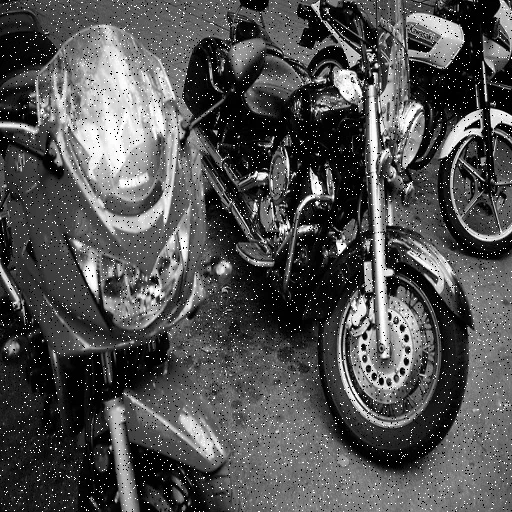
After
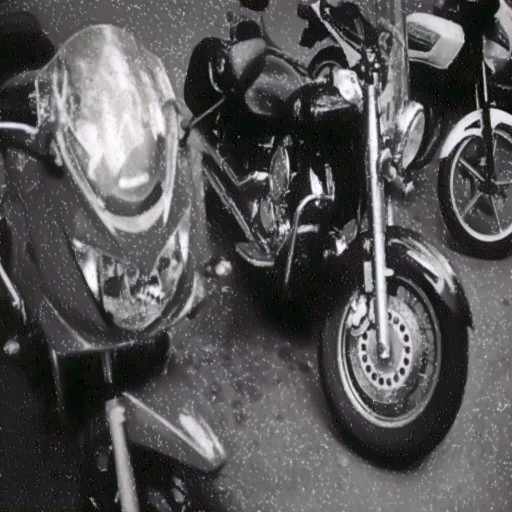
More examples like this: browse before & after results across every tool.
The reception was beautiful. The light was terrible. You pushed your camera to ISO 6400 to get the shot, and now every face is covered in grain and colored speckle. Or a phone photo from a dim restaurant looks like it was printed on sandpaper. Or the scan of an old print came out harsher than the print itself.
The usual fixes force a bad trade. A blur filter removes the grain and the detail with it. The noise-reduction slider in most editors turns skin to plastic long before the shadows are clean. AI denoising changes that trade: it has learned what camera noise looks like, so it can take the grain out while leaving edges and texture where they were.
This guide covers what image noise actually is, how to tell which kind you have, what AI denoising can and can't fix, and how to get a natural result instead of a waxy one.
What Image Noise Actually Is
Image noise is random variation in brightness and color that wasn't in the scene. It comes mostly from the sensor working with too little light: each pixel catches a slightly random number of photons, and the electronics add a little error of their own when the signal is read out. In bright light, the real signal swamps that randomness. In dim light it doesn't, and the grain shows.
That's why ISO gets the blame. Raising ISO doesn't create most of the noise — it amplifies a weak signal, and the noise riding on that signal gets amplified with it. The root cause is light. Small sensors, like the ones in phones, collect less light per pixel, which is why phone photos turn grainy indoors sooner than photos from a larger camera.
Noise shows up in two forms, and most noisy photos have both:
- ●Luminance noise is grain in brightness — a gritty, salt-and-pepper texture, most visible in shadows and flat areas like sky, walls, and skin.
- ●Color (chroma) noise is blotchy red, green, and blue speckle, again worst in the dark parts of the frame. It usually looks worse than luminance noise and is the first thing people want gone.
Which Kind of Noise Do You Have? A 30-Second Check
Zoom to 100% on the darkest area of the photo that should be smooth — a shadow, a wall, a patch of night sky — and compare it with the table below.
| What you see | What it usually is | How well AI denoising handles it |
|---|---|---|
| Fine, even grain, strongest in shadows | Luminance noise from low light or high ISO | Very well — this is what it's built for |
| Red, green, and blue blotches in dark areas | Color (chroma) noise | Very well — the speckle clears cleanly |
| Grain plus a smeared, watercolor look | Noise your phone already tried to smooth away | The grain improves; detail the phone smeared doesn't come back |
| Square blocks and halos around edges | JPEG compression artifacts | Partly — mild artifacts soften; heavy blocking is a different defect |
| Even, organic grain across a scanned film photo | Film grain plus scanner noise | Removes it — but grain is often part of the look, so go gently |
The pattern behind the table: denoising works best on the random grain a camera sensor produces, because that's what the AI learned from. Compression artifacts aren't random — they're a regular pattern left behind by the JPEG encoder — so they respond less predictably. And nothing can bring back detail that was never recorded, or that earlier processing already erased.
How AI Denoising Works
A traditional noise filter looks at each small patch of pixels and averages away the variation. It can't tell grain from the weave of a sweater, so it smooths both — which is why heavy noise reduction looks soft and plasticky.
An AI denoiser is a neural network trained on pairs of photos of the same scene: one noisy shot from a real camera and one clean reference. From those pairs it learns what real camera noise looks like and how it differs from edges, hair, and texture. Given a new photo, it predicts the clean version of each area instead of blurring it.
A few practical consequences follow:
- ●It cleans the pixels you have. Denoising doesn't enlarge the photo or add resolution — that's what upscaling is for.
- ●It removes noise; it doesn't invent detail. Edges and texture that were visible under the grain survive. Fine detail the noise completely buried is gone, and the AI won't make it up.
- ●It isn't a sharpener. A clean photo often looks crisper because the grain no longer competes with the edges, but a blurry photo will come out clean and still blurry. That's a job for deblurring.
Using the Strength Slider
The EnhanceCraft denoiser has one control: a strength slider from 0 to 100%, set to 70% by default. It mixes your original photo with the fully denoised version. At 100% you get the full cleanup; at 50% about half the original grain is blended back in; at 0% you get the original.
So the slider controls how natural the result looks, not how hard the AI works. Some starting points:
- ●Portraits: 50–70%. A little grain keeps skin from turning waxy and keeps pores and hair believable.
- ●Low-light events and night shots: 70–100%. Heavy grain in dark areas is the main problem here, and the full cleanup is usually what you want.
- ●Product and real estate photos: 80–100%. Flat walls, backdrops, and product surfaces show grain badly, and a clean finish is the goal.
- ●Scanned film photos: 30–60%. Clear the scanner speckle but keep some grain, so the photo still looks like film.
Judge the result at 100% zoom, not on the thumbnail. If skin or fabric starts looking smooth and featureless, lower the strength. If the shadows are still gritty, raise it.
When AI Denoising Falls Short
Knowing the limits helps you decide whether to denoise, reshoot, or leave a photo alone.
- ●Fine texture that looks like noise. Gravel, distant foliage, sand, and fine fabric weave have a lot in common with grain, and at full strength some of that texture can soften. Lower the strength if it matters.
- ●Severely underexposed shots. If you had to brighten a very dark photo by several stops, the noise is mixed deep into the detail. Denoising makes it far more usable, but it won't look like a well-exposed shot.
- ●Detail the phone already erased. Many phones smooth noise before you ever see the file. That smeared look is lost detail, not noise, and denoising can't restore it.
- ●Heavy compression. Strong JPEG blocking and banding are regular patterns rather than random grain, so they clear only partly.
- ●Intentional grain. Film grain, or a grain effect added for style, is part of the image. Remove it only if you mean to.
- ●Blur. Denoising doesn't fix missed focus or motion blur — clean the noise first, then deblur.
AI Denoising vs. Blur Filters vs. In-Camera Noise Reduction
| Approach | What it does | Trade-off |
|---|---|---|
| Blur or smoothing filter | Averages neighboring pixels | Removes noise and detail together |
| Noise-reduction slider in an editor | Smooths variation, often with separate color and luminance controls | Fine for light noise; strong settings turn skin plastic |
| In-camera or phone noise reduction | Applied automatically when the photo is taken | Baked into the JPEG; often leaves a smeared, watercolor look |
| AI denoising | Predicts the clean image from patterns learned on real camera noise | At full strength, can soften texture that resembles grain |
Where Denoising Helps Most
- ●Events and weddings shot in dim venues at high ISO, where flash wasn't allowed or wanted.
- ●Phone photos from restaurants, concerts, and other indoor spaces.
- ●Real estate interiors, where shadowy corners and flat walls show grain badly — denoising is one of the corrections in the real-estate edit pack.
- ●Product photos taken in less-than-ideal light, before they go onto a white background.
- ●Scanned prints and film, where scanner speckle sits on top of the original grain.
- ●Stills pulled from video, especially footage shot in low light.
Clean images matter commercially, too. Salsify's 2026 consumer research found that one in three shoppers abandon a purchase because of low-quality or missing images and videos. Grainy product shots are one of the easiest of those quality problems to fix.
Where Denoising Fits in Your Workflow
Order matters: clean first, then enhance.
Denoise before upscaling. Upscaling a noisy photo enlarges the grain along with everything else.
Denoise before deblurring. Deblurring sharpens whatever is there, noise included, so a grainy photo comes out sharp and gritty.
Denoise before face restoration on grainy portraits, so the face enhancement starts from cleaner detail.
Denoise right after scanning, before color correction and cropping, so every later edit starts from a clean base.
Getting Less Noise in the First Place
Noise is easier to avoid than to remove. Expose properly in camera: brightening a dark photo afterward raises its noise the same way a high ISO does. Add light where you can — move toward a window, switch on the room lights, or use a lens with a wider aperture. On a phone, hold still and let night mode gather more light. And when a moving subject forces the choice, accept the grain: a bit of noise is far easier to clean than motion blur.
Ready to Clean Your Photos?
Upload a grainy or speckled photo to the free AI image denoiser, start at the default strength, and check the result at full zoom. If your photo is hazy rather than grainy, the AI dehazer is the better fit for outdoor, drone, and landscape shots.
Found this helpful?
Share it with your network
Ready to try it yourself?
25 free credits to start, then 10 every month. No credit card. Process your first image in under 15 seconds.
Try Denoiser freeMunib Ali Laghari
Founder & Lead Developer · EnhanceCraft
Munib Ali Laghari is the founder and lead developer of EnhanceCraft, an AI image toolkit. He writes about AI upscaling, photo restoration, and background removal. Connect on LinkedIn