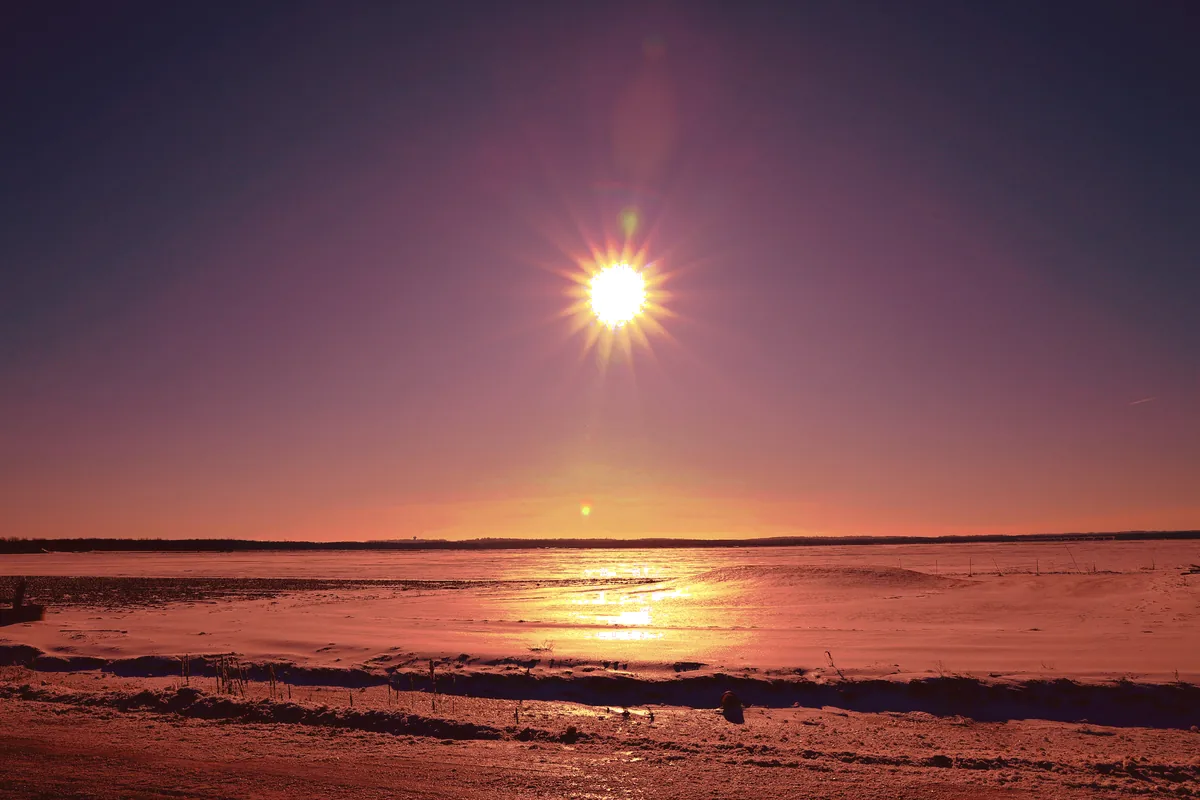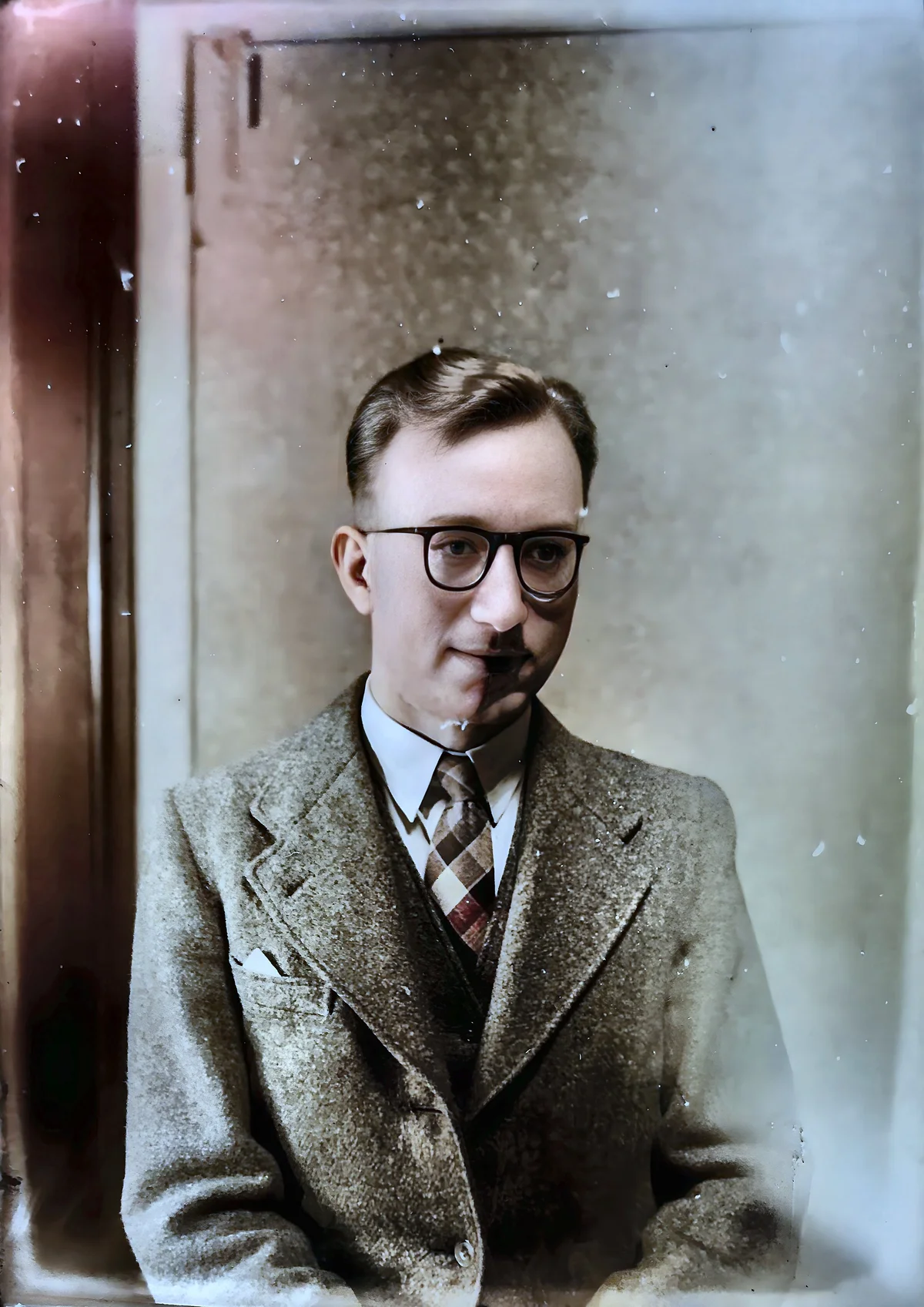
AI Inpainting: Seamlessly Remove Unwanted Objects
How AI inpainting removes people and objects from photos, how it fills in the background, and how to do it without leaving a trace.
Munib Ali Laghari
Founder & Lead Developer
Quick answer
How do you remove an object from a photo with AI?
AI inpainting removes an unwanted object after you paint over it: the model analyzes the surrounding pixels and fills the area with matching texture and color so the removal is invisible. EnhanceCraft erases people, watermarks, power lines, and blemishes, reconstructing the background behind them.
Before
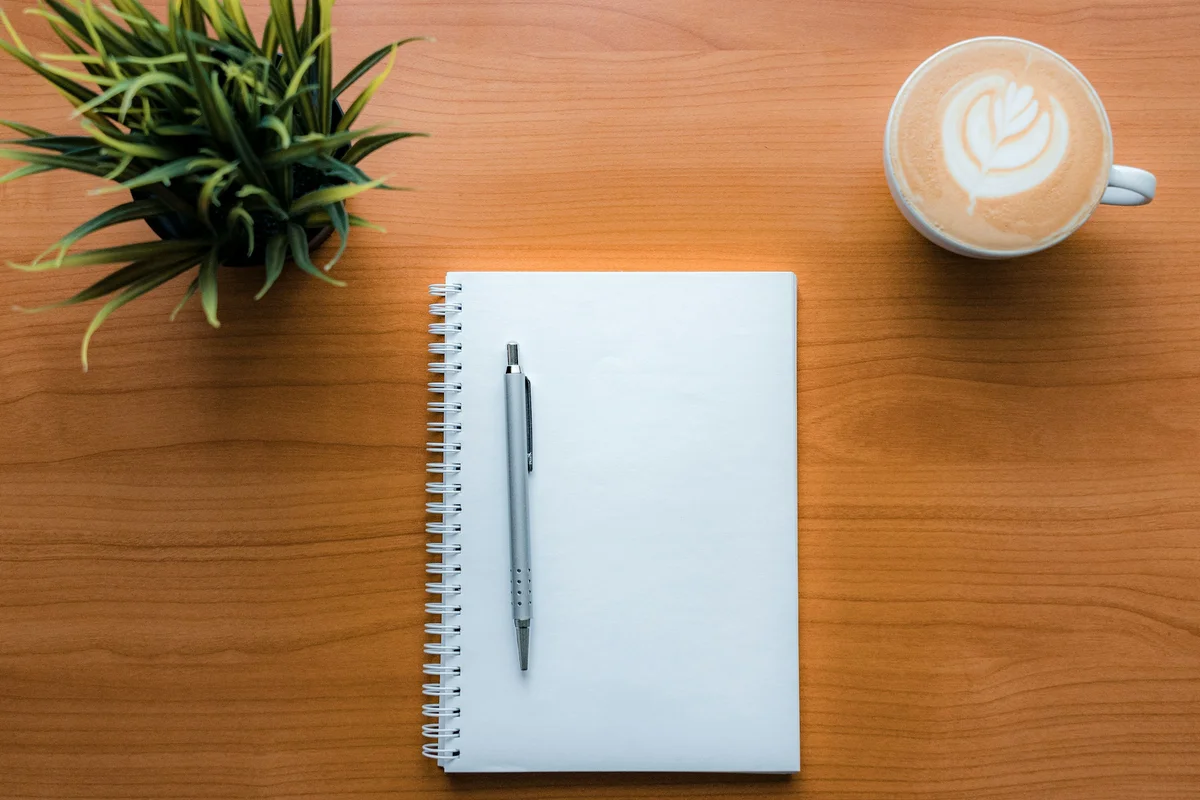
After
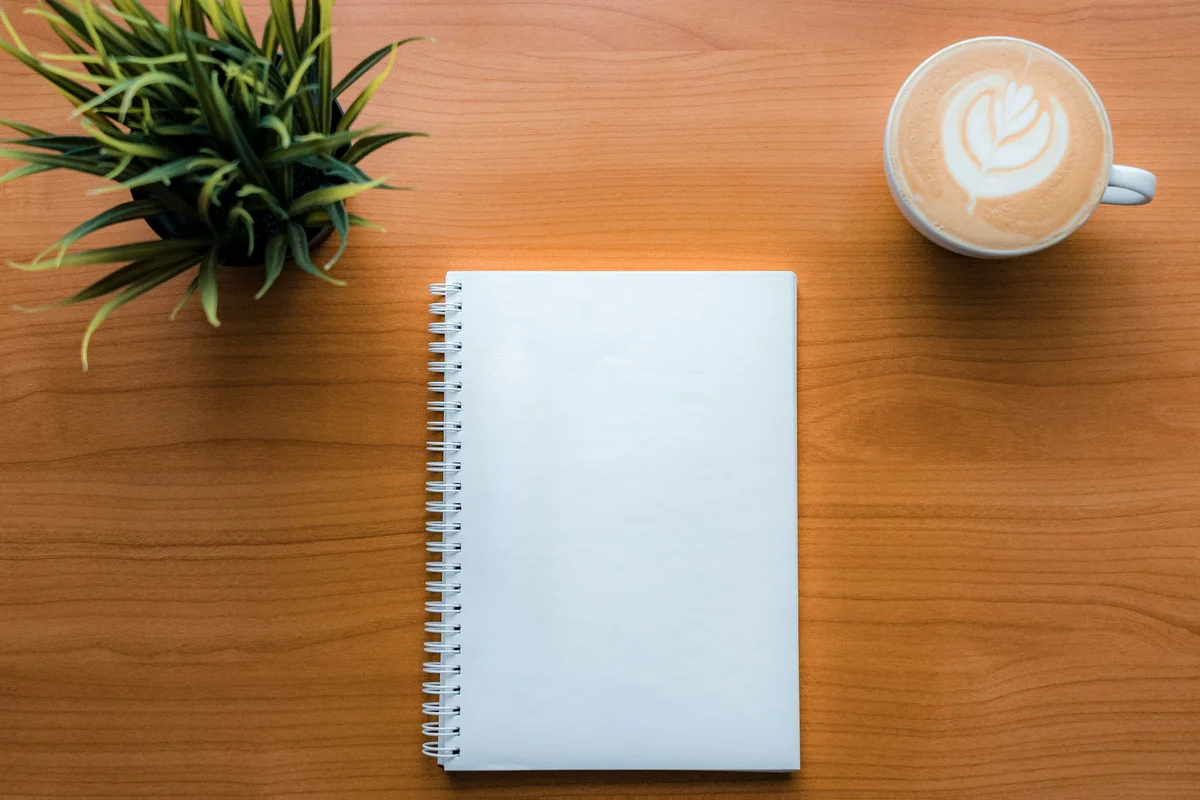
More examples like this: browse before & after results across every tool.
Have you ever taken the perfect photo, only to find an unwanted object ruining it? Maybe it's a stranger in the background, power lines crossing the sky, or an unexpected reflection. What used to require expensive software like Photoshop and hours of manual work can now be done in seconds with AI inpainting.
What is AI Inpainting?
AI inpainting fills missing or unwanted areas of an image by analyzing surrounding context — textures, colors, gradients, and scene structure — and generating realistic replacement content that blends seamlessly. Unlike manual cloning, which requires expert judgment for every pixel, AI handles large complex areas automatically in seconds. Think of it as a smart digital paintbrush that understands what the rest of your photo looks like and paints the gap to match.
Modern AI inpainting can handle removing large objects, repairing damaged photos, cleaning up distractions, and even extending image borders naturally.
How It Works
Our inpainting technology analyzes the entire image to understand the scene context before filling any removed area — which is why it can reconstruct complex textures like grass, sky, or water that simple cloning tools handle poorly.
When you paint over something with the object remover, the AI looks at everything around the marked area — the textures, colors, lines, and patterns — and generates new pixels that continue them across the gap. It handles large areas (not just tiny blemishes), matches complex textures, and keeps natural edges intact.
What Does the AI Put Behind the Object You Removed?
It puts a believable guess — not the real thing. This is the part most guides skip. The photo never captured what was hiding behind that person or object, so there is nothing to recover. The AI works out what most likely belongs there, based on the scene around it, and paints that.
That works beautifully when the hidden area is predictable: grass continues as grass, a wall as a wall, a sandy beach as more beach. It works less well when the hidden area was something specific and unique — the pattern on a particular rug, a sign, the other half of a face. In those cases the fill will look plausible but will not match what was really there, and if you look closely you may see it. That's the trade-off behind every clean removal: you're swapping the real background for a convincing invented one.
Perfect Use Cases for AI Inpainting
Manual background removal in Photoshop takes 20–60 minutes per complex image for experienced editors. AI inpainting eliminates unwanted objects in seconds, making it practical to clean entire photo collections without dedicating hours to individual images.
Cleaning Up Your Photos
Tourist photos are notorious for unwanted elements. Remove that random person who walked into your shot, delete distracting power lines from landscape photos, eliminate trash or clutter from the scene, or clean up crowded tourist spots to show the location as you remember it.
Restoring Damaged Images
Old photographs are precious but fragile. AI inpainting can repair torn or creased photos, fix water damage and stains, remove scratches and marks, and restore missing corners or edges. Your cherished memories deserve to look their best.
Professional Applications
For business and creative work, inpainting is invaluable. Product photographers can remove price tags and labels, clean up reflections, and perfect their backgrounds. Content creators can prepare cleaner images for marketing and remove distracting elements from compositions. Real estate is the exception where you need to slow down: removing a bin or a parked car is very different from removing something permanent about the property, and MLS rules on this genuinely differ — see the section below on when not to remove something.
Removing a Person Without Leaving a Trace
A removed person leaves a trace when something that belonged to them gets left behind — most often their shadow, their reflection, or a smudge where the background didn't quite match. Almost every "you can tell it was edited" result comes down to one of five giveaways, and each has a simple fix:
- 1.A leftover shadow. People cast shadows on the ground and sometimes on walls. Include the shadow in your selection, not just the person. This is the single most common mistake.
- 2.A missing or leftover reflection. If the person was standing near water, a window, a shiny floor, or a car, they may appear reflected there too. Remove the reflection as well, or the ghost gives it away.
- 3.Bent lines. When someone stands in front of a horizon, a fence, a tiled floor, or a building edge, the fill has to continue those lines straight across the gap. Check the lines afterward; if one looks bent, undo and try again with a slightly larger selection so the AI sees more of the line on both sides.
- 4.Repeating or smudged texture. Grass, gravel, and crowds can come out looking copy-pasted or blurry. Doing the removal in two smaller passes instead of one big one usually gives more natural variation.
- 5.Cut-off body parts. If the person overlapped someone else — an arm over a shoulder, a head in front of another face — the AI has to invent the part of the other person that was hidden. That is where results are weakest, and it's the one case where a clean result isn't guaranteed. Try it, zoom in on the overlap, and if it looks off, consider cropping instead.
A good final check is to zoom in to 100% and look at the exact spot, then step back and view the whole photo. If your eye doesn't snag on the area from a normal viewing distance, nobody else's will either.
Group photos and crowds. Remove people one at a time, starting with the ones in front. Each removal gives the AI a cleaner scene to work from for the next one, and it's much easier to catch a problem when only one thing has changed. ## Getting the Best Results
The key to great inpainting results starts with your selection. When marking the area to remove, draw slightly beyond the object's edges and include its shadow. Being generous with your selection gives the AI more context to work with.
Inpainting works best on certain types of backgrounds. Simple, uniform backgrounds like sky, grass, or plain walls are ideal. Repetitive textures such as brick, tiles, or fabric patterns give excellent results. Natural scenes like forests, beaches, and landscapes are also great candidates.
However, some scenarios are more challenging. Complex geometric patterns, important details like faces, highly structured backgrounds, and unique non-repeating elements may require multiple attempts or different approaches.
Advanced Techniques
For particularly stubborn objects or complex scenes, try a multi-pass approach. First, remove the main object. Then, use inpainting again to clean up any remaining artifacts. Finally, make small fine-tuning adjustments if needed.
You can also combine inpainting with our other tools for even better results. After removing an object, upscale the image for enhanced detail. Use our face restoration tool if the inpainting affected any portraits, or apply background removal and replacement for complete scene transformations.
The same fill-from-context technology powers several packaged workflows. For real-estate photos, window pull reconstructs the view through blown-out windows and the real-estate edit pack bundles it with geometry and color corrections; for apparel, the ghost mannequin tool fills the inside of a garment after the mannequin is removed so it looks worn by an invisible body.
Professional Tips
Starting with Quality
Higher resolution images always produce better inpainting results. Start with the sharpest, clearest version of your photo available. Good lighting in the original photo helps the AI understand the scene better, and simpler backgrounds are naturally easier to work with.
Using the Selection Tool
Take your time when marking the area to remove. Use brush tools carefully and precisely. Make sure to cover the entire unwanted object including its edges. Don't forget to include shadows cast by the object, as leaving them creates an obvious giveaway.
When Not to Remove Something
Removing a stranger from your holiday photo is a harmless clean-up. Some photos, though, are expected to be a straight record of what was there, and editing them can mislead people.
Property listings. Rules differ by state and by MLS, and they are strict about alterations to the property itself. For example, Stellar MLS explicitly prohibits removing utility lines, and California's AB 723 requires disclosure when a listing image has been digitally altered in ways that change what the property looks like. Taking a bin or a passing car out of the shot is a different thing from removing something permanent, but always check your own board's rules first. We break down exactly what's allowed in what actually changed in real estate photography in 2026 and the MLS photo requirements checklist.
News, documentary, and evidence. Photos presented as a factual record — news photography, insurance or legal documentation, anything where the viewer is relying on what's in the frame — shouldn't have people or objects removed. The professional standard in photojournalism is that an edit must never change what the photo shows in a way that could mislead the viewer.
Group photos of people who were there. It's your photo, and taking a stranger out is fine. If you're editing a shared photo to erase someone who was part of the moment, it's worth a thought about how that will land with the people in it — especially before posting it.
Ready to Try It?
AI inpainting puts professional photo editing power in your hands. Whether you're cleaning up personal photos, restoring family memories, or perfecting images for business use, our inpainting tool makes it simple.
Upload your image, mark what you want to remove, and watch it disappear seamlessly. No complicated software to learn, no manual painting required—just intelligent AI doing the heavy lifting for you.
Found this helpful?
Share it with your network
Ready to try it yourself?
25 free credits to start, then 10 every month. No credit card. Process your first image in under 15 seconds.
Try Object Remover freeMunib Ali Laghari
Founder & Lead Developer · EnhanceCraft
Munib Ali Laghari is the founder and lead developer of EnhanceCraft, an AI image toolkit. He writes about AI upscaling, photo restoration, and background removal. Connect on LinkedIn